



Switch to iPhone Without Stress

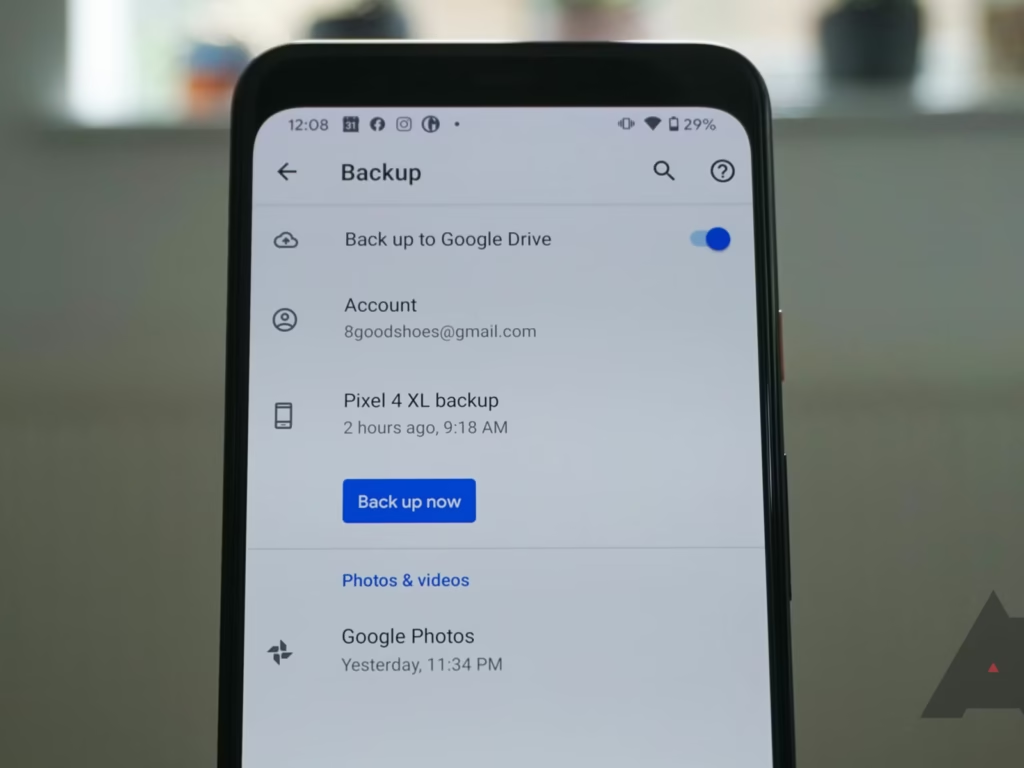
z Switching from Android to iPhone should feel like an upgrade, not a technical migration project. Most people don’t hate the idea of iPhone, they hate the fear that comes with switching. Losing WhatsApp chats. Photos disappearing. Contacts going missing. Banking apps refusing to log in. That anxiety is what stops people. The truth is simple. If you do the switch in the right order, nothing important gets lost. This guide walks you through the process calmly, clearly, and without overcomplicating it. Follow it once and you are done. This is for anyone moving from Android to a brand new iPhone who actually uses their phone properly. If WhatsApp matters to you, if your photos are important, if you rely on banking apps, email, and daily communication, this guide is for you. If you want the switch done fast and correctly, not through guesswork, keep reading. Most switching disasters happen before the iPhone is even turned on. This is the part people rush, then regret later. Start with WhatsApp. Make sure it is updated on your Android phone and that your number can receive SMS or calls. WhatsApp transfer relies on verification, so if your line has issues, fix that first. Also ensure your phone has enough free space, because WhatsApp needs room to prepare the transfer. Next, confirm your photos are backed up. If you already use Google Photos, open it and check that recent photos are actually appearing there. Do not assume. If you prefer, you can also move photos directly during iPhone setup, but you must be sure storage on the iPhone can handle it. Contacts are another silent problem. Many people think contacts are saved, but they live only on the SIM card or phone memory. The safest move is syncing contacts to your Google account first, then confirming they appear online. Before switching, take one minute to list the apps you must have on day one. WhatsApp, banking apps, email, work tools, social apps. This makes it easy to confirm everything later. Finally, make sure you know your logins. Google account password, WhatsApp number, banking credentials, and any two factor authentication apps. If you are unsure, reset passwords now while the Android phone still works. If you want the smoothest possible switch, use Apple’s Move to iOS app during iPhone setup. This is not optional if you care about WhatsApp and clean data transfer. When setting up the iPhone, choose the option to move data from Android. Install Move to iOS on the Android phone and let it run uninterrupted. Keep both phones plugged in, use stable WiFi, and do not jump between apps. This method transfers contacts, photos, videos, Google account data, and in many cases messages. It is not instant, but it is reliable. Most problems happen when people rush or interrupt the process. Treat it like a one time migration, not something to multitask through. If WhatsApp matters to you, this part matters the most. WhatsApp transfer only works properly during iPhone setup. If you skip it, you cannot magically pull chats later. Make sure WhatsApp is updated on Android, your number is active, and the iPhone is either new or freshly reset for transfer. After the move, install WhatsApp on the iPhone, verify your number, and wait. Do not panic if media takes time to appear. Large chat histories sync slowly. Most WhatsApp failures come from using a different number, lacking storage, or rushing setup screens without reading them. Slow down here. This is the difference between success and regret. Banking and mobile money apps are strict by design. That is not a bug, it is security. Before switching, confirm your SIM can receive OTPs and that your email linked to banking apps is accessible. Updating banking apps on Android before switching also reduces login issues. After switching, always install banking apps fresh from the App Store. Log in normally and complete verification. If an app blocks access, use the official reset process instead of guessing. Too many failed attempts can lock you out for hours or days. Most lockouts happen because people forget PINs or try too many times in a row. Be patient. Once the phone is set up, do not rush ahead yet. Create or sign into your Apple ID properly and turn on two factor authentication. Save your recovery options. This account is the key to everything. Turn on Find My iPhone immediately. This protects the device if it is lost or stolen and activates important security features. Set up iCloud backup. This single step prevents future stress. If your phone is backed up, nothing is truly lost. Then configure essentials like Face ID, passcode, email accounts, and basic settings. Do not install random apps yet. Get the foundation right first. Before you relax or sell your old phone, confirm everything. Check that contacts are present. Photos are visible or syncing. WhatsApp chats and media are intact. Banking apps and mobile money work. Email works. Your key apps are installed. Only after confirming all of this should you wipe the Android phone. This is not paranoia, it is common sense. If photos seem missing, check Google Photos and confirm the correct account is logged in. Large libraries take time, especially on WiFi. If WhatsApp did not transfer, it usually means the transfer step was skipped or interrupted. Avoid random hacks. Proper migration is the only safe fix. If a banking app refuses login, stop, reset credentials through official channels, and ensure OTP delivery works. Do not brute force it. If you want the switch handled cleanly without stress, Applecenterke helps customers set up their iPhones properly from day one. Data stays intact, apps work, and you actually enjoy the upgrade instead of fighting it. If you want guidance before switching, share your current phone model, WhatsApp usage size, and what matters most to you. A clean plan saves hours of frustration. Switching to iPhone is not hard.A Simple, Step by Step Guide That Actually Works
Who This Guide Is For

Before You Switch: The 15 Minute Safety Prep

The Cleanest Way to Move Everything

WhatsApp: The One Thing You Cannot Wing
Banking Apps and Mobile Money Without Lockouts
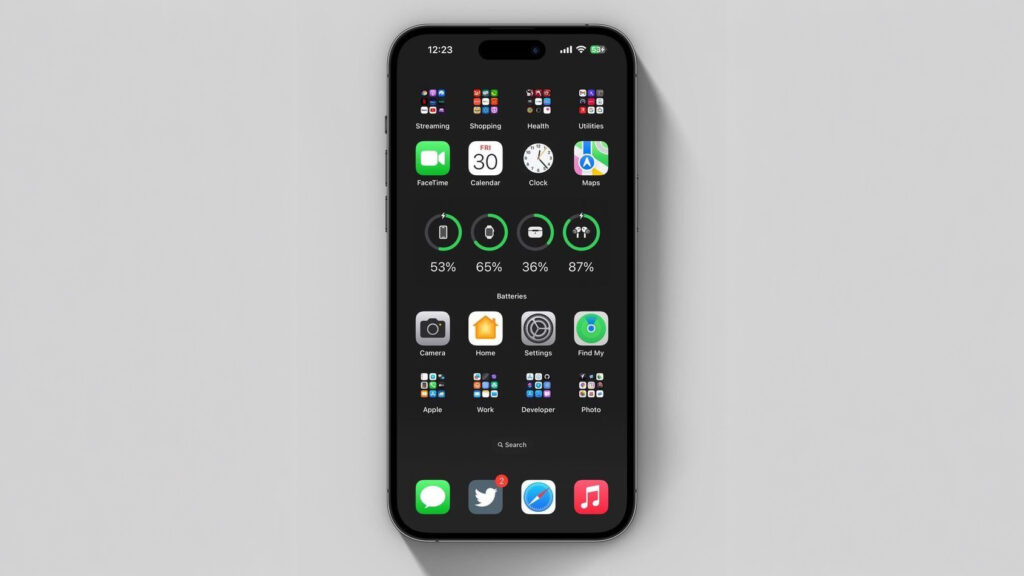
Your First 30 Minutes on iPhone

The Final Confirmation Check

Common Problems and Simple Fixes
Want the Switch Done for You?

Doing it carelessly is.